
47% of kids under 8 already own a tablet. Here’s the 20-minute setup, accounts, filters, time limits, and what to say when you hand it over… before the first meltdown.

Key Takeaways
- 47% of U.S. kids under 8 already own a tablet, and 40% have one by age 2. This is now a mainstream parenting milestone, not an early one.
- Set up a dedicated kid profile before the first login. Never hand over a device still signed into an adult account.
- Built-in tools (Apple Screen Time, Google Family Link, Amazon Parental Controls) are free and a solid floor, but each one only manages that device’s ecosystem. Nothing bridges a tablet and a laptop natively.
- Kids 8 and under average about 2.5 hours of screen time a day, and setup decisions made on day one shape whether that time stays balanced.
Whether it’s a hand-me-down iPad, a birthday gift from grandma, or the result of you finally caving to peer pressure, the reality is the same. You have a blank tablet in one hand, an impatient kid tugging at your other, and zero plan for what to do next.
You aren’t alone in this standoff. With 47% of U.S. kids under eight now owning a tablet, handing over a screen has officially become a standard parenting chore, right up there with car seat installations. It’s entirely normal, which is exactly why you shouldn’t make up the rules as you go.
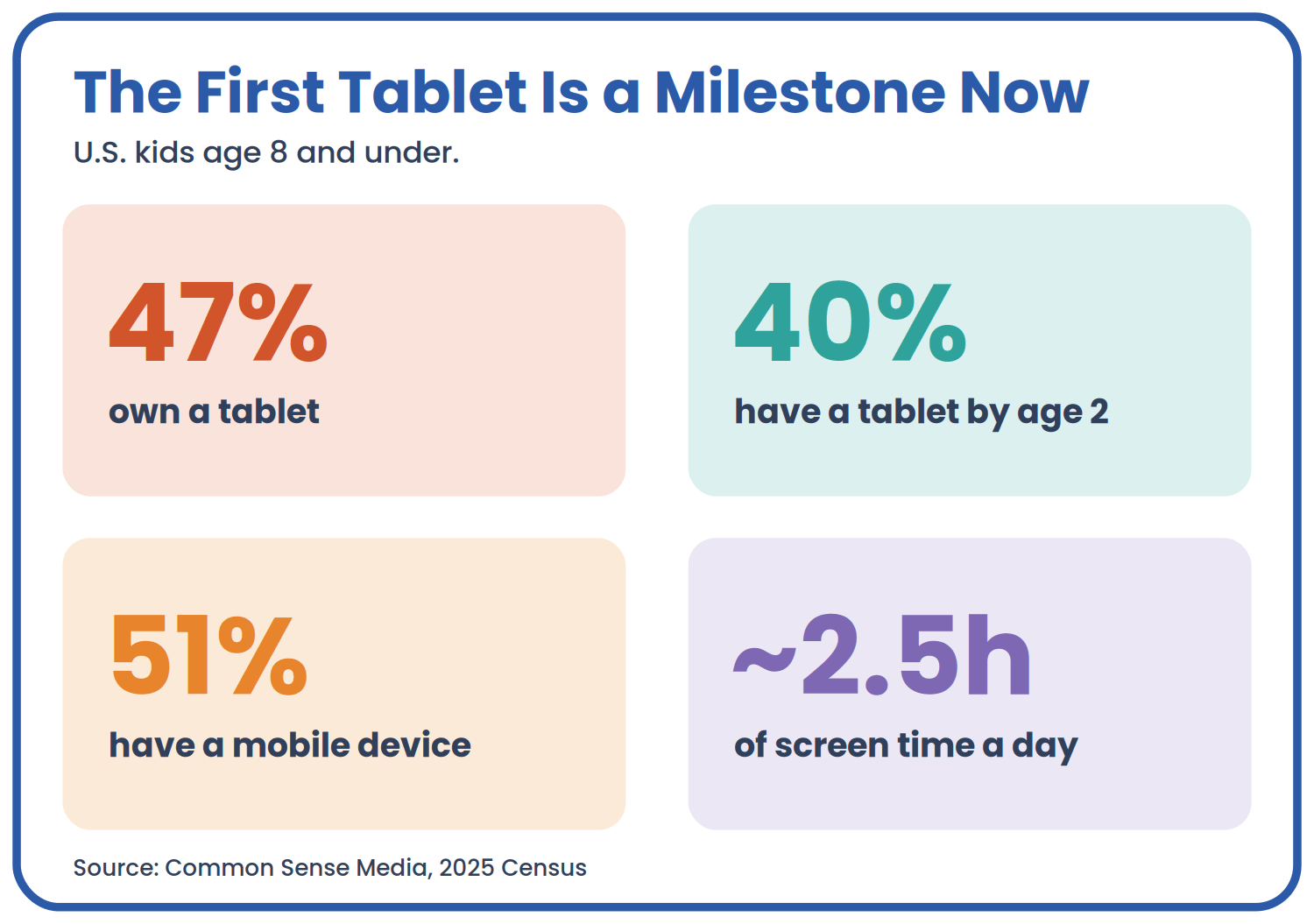
First tablet, by the numbers
The setup you do in the first twenty minutes, before the tablet ever reaches small hands, determines whether the next six months involve a reasonable amount of screen time or a nightly negotiation that ends in tears, yours or theirs. Here’s the order to do it in.

The 20-minute setup, in order
Step 1: Wipe It Clean Before You Set It Up
If this tablet is new, skip ahead. If it’s a hand-me-down, your old iPad, an outgrown Android tablet, anything that’s ever had your email, your photos, or your credit card on it, back it up and factory reset it first. Apple and Google both walk through this for their devices, and it matters for more than privacy: both platforms are built around one primary user profile per device, and mixing your accounts and settings with your child’s creates exactly the kind of confusion that makes parental controls unreliable later.
Ten minutes now saves you from discovering three weeks in that your kid can see your text messages through a leftover notification setting.
Step 2: Create a Kid Profile, Not an Adult Login
This is the step people skip when they’re in a hurry, and it’s the one that matters most. The account your child logs into determines what app store they see, what gets auto-approved, and whether your controls actually stick.

Set up a kid profile on any platform
- If it’s an iPad: Turn on Family Sharing and create a dedicated Apple ID for your child (you’ll need their birthdate). Then go to Settings > Screen Time, select your child’s name under Family, and turn on Content & Privacy Restrictions. This is also where you set a Screen Time passcode, different from the device passcode, so your child can’t quietly turn restrictions off.
- If it’s an Android tablet: Set up Google Family Link from your own phone, create or link your child’s Google account, then follow the in-app steps to pair the tablet. Family Link lets you approve app downloads, set daily limits, and lock the device remotely. Note that Google’s own policy allows a child to request to manage their own account once they turn 13, so treat this as a system built for the elementary and tween years.
- If it’s a Fire tablet: Amazon’s parental controls live under Settings > Profiles & Family Library, where you can create a child profile tied to Amazon Kids, set content limits by age, and manage screen time from the Amazon Parent Dashboard. This is the fastest of the three to set up and comes with a curated content library out of the box, which is worth knowing if you’re choosing between device types and want less filtering work later.
Whichever platform you land on, this is also a good moment to skim our guide to the iPad apps actually worth downloading, and decide what’s going on the tablet before your kid does.
What Age Is “Ready” for a Tablet, Anyway?
There’s no single right answer, but pediatric guidance gives you a reasonable floor to work from. The American Academy of Pediatrics has moved away from a single hourly number and toward what it calls the “5 C’s,” which are Child, Content, Calm, Crowding Out, and Communication, evaluating the whole picture rather than the clock. Mayo Clinic’s widely-cited age bands are still a useful starting point for a first device specifically:
In short: under 2, video chat only; ages 2 to 5, about an hour a day of co-viewed content; ages 6 to 12, consistent family-set limits; and from 13, the focus shifts to habits and sleep over a fixed number.

What age is ready for a tablet?
Research on early tablet use backs up the “how” mattering more than the “how much.” A foundational Pediatrics review found that the way young children interact with mobile media shapes outcomes as much as raw duration does. Translation: the setup you do today is doing real work, not just buying you a quiet car ride.

Step 3: Lock Down Content Before They Ask for Anything
Before you hand the tablet over, decide what’s allowed to be installed without you, and set it so nothing downloads without a PIN or your approval.
- App Store and Google Play restrictions: Require a password or parental approval for every download and every in-app purchase. This one setting prevents the single most common “how did this get on here” conversation.
- YouTube: Install YouTube Kids instead of regular YouTube for anyone under about 8, and even then, check the content settings. The algorithm still needs boundaries.
- Web filtering: Both Screen Time and Family Link let you restrict web content by age rating or specific site. Turn this on now. It’s much harder to explain later why a filter suddenly appeared.
- Purchase PIN: Separate from the unlock passcode. Kids memorize passcodes faster than you’d like.
None of this is bulletproof. Tech-savvy kids eventually find workarounds, and filters miss things, which is exactly why pediatric guidance treats parental controls as backup enforcement for a conversation you’re already having, not a replacement for it. But it closes the easiest, most common gaps before they become a fight.
Step 4: Set Time Limits That Actually Hold, Across Every Device
Here’s where most first-tablet setups quietly fail: the built-in tools only manage the device they’re built into. Apple Screen Time doesn’t see the family Windows laptop. Google Family Link doesn’t see anything outside the Google ecosystem. If your child’s tablet is the first device today but a shared desktop or a hand-me-down laptop is next year, you’re about to be managing two completely separate sets of rules, and kids find the gap between them faster than parents do.
This is the specific problem Salfeld’s Child Control software is built to solve for Android tablet and Windows PC households. Instead of setting a time limit on the tablet and a different one on the computer, its roaming feature applies one shared limit across both. So if your child has 90 minutes left after using the family laptop for homework, that’s what shows up on the tablet later, automatically, with nothing to reconcile by hand. It also filters content by age or category and sends you a usage report, so you’re not guessing what actually happened during “screen time.”
The feature worth pairing with Step 3’s content rules is Bonus Time Codes. It automatically grants a few extra minutes when your child uses an approved educational app, so “can I have five more minutes” has an answer you can say yes to on your own terms, instead of caving because it’s 6 p.m. and you’re tired.
If your family is entirely Apple, Screen Time’s Family Sharing covers you reasonably well on its own. If it’s a mixed household, an Android tablet today and a Windows laptop by third or fourth grade, a cross-device tool is worth setting up before the second device shows up, not after the two systems have already started disagreeing with each other.

Step 5: Add the Physical Stuff, Then Preload a Few Apps
Once the software side is locked in, the setup is almost done. You may want to add:
- A case with a stand or handle. Kids drop things. Buy the case before the first drop, not after.
- Volume-limiting headphones, if this tablet is going in a backpack or on a car ride. Worth a look at our full headphones breakdown before you grab whatever’s cheapest at checkout.
- Two or three apps preloaded, chosen by you, so the first thing your kid does isn’t scrolling an empty app store looking for something to download.
That’s it. Software, content, time limits, case, headphones, in that order, it’s a twenty-minute job.
What to Actually Say When You Hand It Over
The setup solves the technical half. The other half is the handoff conversation, and a few words up front save you a lot of friction later.
Before they touch it: “This is yours, and it also has some rules built in, not because I don’t trust you, but because that’s how tablets work in our house. Let’s look at them together so you know what to expect.”
When they ask for more time: “I hear you, you’re not done yet. Here’s what we agreed: two more minutes to find a stopping point, then it’s off.” You’re not re-litigating the limit. You’re offering a real choice inside it.
If they’re older and asking why there are limits at all: “I’ve seen what happens to your mood and your sleep when this doesn’t have a stopping point. The limit isn’t a punishment. It’s there so neither of us has to fight about it every night.”
A written or verbally agreed plan, even a simple one, holds up better than a rule you repeat from memory every evening, because the disagreement shifts from “you vs. your child” to “the plan we already agreed on.”

What to say when you hand it over
Frequently Asked Questions
What age should a kid get their first tablet? There’s no universal age, but pediatric guidance treats screens under 18-24 months as video-chat-only, moves to about an hour of co-viewed content for ages 2-5, and shifts toward consistent family-set limits from age 6 on. In practice, 40% of U.S. kids already have a tablet by age 2, so “ready” is often more about your household’s needs than a fixed number.
How do I set up parental controls on a new tablet for my child? Create a dedicated child profile first: an Apple ID with Family Sharing for iPad, a linked Google account through Family Link for Android, or a Kids profile for Fire tablets. Then turn on content restrictions, require a PIN for downloads and purchases, and set a daily time limit before handing the device over.
Do parental controls turn off when my kid turns 13? Not automatically, but the rules change. Google Family Link, for example, allows a child to request to manage their own account once they turn 13, which shifts the balance of control. Apple’s Screen Time doesn’t have a hard cutoff at 13, but many families start renegotiating restrictions around the early teen years as trust and independence grow.
Can I set one time limit across my kid’s tablet and computer instead of two separate ones? Not with the free built-in tools. Apple Screen Time only manages Apple devices, and Google Family Link only manages the Google and Android ecosystem, so a mixed household ends up with two unconnected rule sets. Third-party tools like Salfeld Child Control solve this specifically for Android tablet and Windows PC combinations through a shared roaming time limit that applies across both devices automatically.
Should I buy an iPad, an Android tablet, or a Fire tablet for my kid’s first device? A hand-me-down device you already own is often the simplest choice, since it’s already familiar and free. Beyond that, Fire tablets come with the most built-in content curation for younger kids, while Android tablets paired with a Windows PC give you more flexibility for cross-device controls as your child gets older.
The Setup Is the Easy Part
Twenty minutes of account creation, content filters, and time limits will save you months of the fights those settings were built to prevent. The tablet doesn’t need to be perfect on day one. It needs a kid profile instead of yours, a filter turned on before the first download, and a time limit that still means something once there’s a second device in the house.
Do that, and the meltdown you were bracing for is a lot more likely to be about bedtime than about the tablet.
Sources
- Common Sense Media, “The 2025 Common Sense Census: Media Use by Kids Zero to Eight,” 2025: https://www.commonsensemedia.org/research/the-2025-common-sense-census-media-use-by-kids-zero-to-eight
- K-12 Dive, “Half of young children own a cell phone or tablet,” 2025: https://www.k12dive.com/news/half-of-young-children-own-a-cell-phone-or-tablet/741318/
- The New York Times (Wirecutter), “How to Set Up a Kid’s Tablet,” 2025: https://www.nytimes.com/wirecutter/blog/set-up-kids-tablet/
- Apple Support, erase and reset a device: https://support.apple.com/en-us/118426
- Apple Support, Screen Time and Content & Privacy Restrictions: https://support.apple.com/en-us/105121
- Google, back up your device: https://support.google.com/googleone/answer/9149304
- Google, get started with Android parental controls (Family Link): https://www.android.com/articles/get-started-with-android-parental-controls/
- Google Families, Family Link privacy notice: https://families.google.com/familylink/privacy/notice/
- Amazon, set up parental controls on a Fire tablet: https://www.amazon.com/gp/help/customer/display.html?nodeId=GG2LBLF5V2T8XUX8
- HealthyChildren.org (AAP), the 5 C’s of media guidance, 2026: https://www.healthychildren.org/English/family-life/Media/Pages/kids-and-screen-time-how-to-use-the-5-cs-of-media-guidance.aspx
- HealthyChildren.org (AAP), how to make a family media plan, 2026: https://www.healthychildren.org/English/family-life/Media/Pages/How-to-Make-a-Family-Media-Use-Plan.aspx
- Mayo Clinic, “Screen time and children,” 2024: https://www.mayoclinic.org/healthy-lifestyle/childrens-health/in-depth/screen-time/art-20047952
- Radesky, Schumacher & Zuckerman, “Mobile and Interactive Media Use by Young Children,” Pediatrics, 2014: https://doi.org/10.1542/peds.2014-2251
- Salfeld Child Control: https://salfeld.com/en/child-control/
Speak Your Mind